
⭐️ Redesigned Navigation Experience: We’ve continued the navigation redesign we started in 1.62 by rebuilding the Route Overview and turn-by-turn navigation screens around a cleaner set of banners. Drivers get a more modern app experience that takes advantage of more screen real estate for the map view.
On the Route Overview screen, we’ve separated the stop information from the route summary information such as ETA, distance, and duration. This more closely resembles the navigation screen, making it a seamless transition between screens.
In turn-by-turn navigation, the maneuver banner and the ETA banner have both been redesigned, and on tablets they use a new partial-width layout instead of stretching edge to edge, leaving considerably more of the map visible. The maneuver banner now grows to fit up to three lines at a constant font size, instead of shrinking long road names to be too small to read. Fleets using the Driver Status endpoint or our Geotab integration keep the full scrollable HOS banner, so drivers still see every clock and any arrival instructions sent through it.
The navigation redesign provides an easier user experience and sets the foundation for future enhancements.

⭐️ Navigation Ended Trip Change and Snapshot: We’ve added two new Trip Change types to inform you when a driver’s navigation session has ended. The driver-ended-navigation Trip Change indicates that a driver manually ended the session, whereas the system-ended-navigation Trip Change indicates the driver reached their destination and the system automatically ended navigation. For both Trip Change types, you’ll receive the driver’s current location. This ensures that fleets can paint the full picture from the time a driver starts navigation to the time that it ends. You can also see these events as Snapshots in Trip Planner Studio.
⭐️ Dashboard UI Refresh and Colors: Dashboard cards have a cleaner, more modern look and now offer custom colors. Cards appear with rounded corners rather than full-width bars, with larger titles, improved spacing, and a new set of icons that give drivers a consistent experience on both Android and iOS.

App Manager receives a new styling control. For each dashboard card, choose whether the header floats with no color, or select a header color from a predefined palette, with the option to apply a matching background color. It’s one more way the Platform puts you in control of your app experience. You can use color to highlight important information and match your company’s branding—all without sacrificing readability. Even more color customization is available via our APIs.

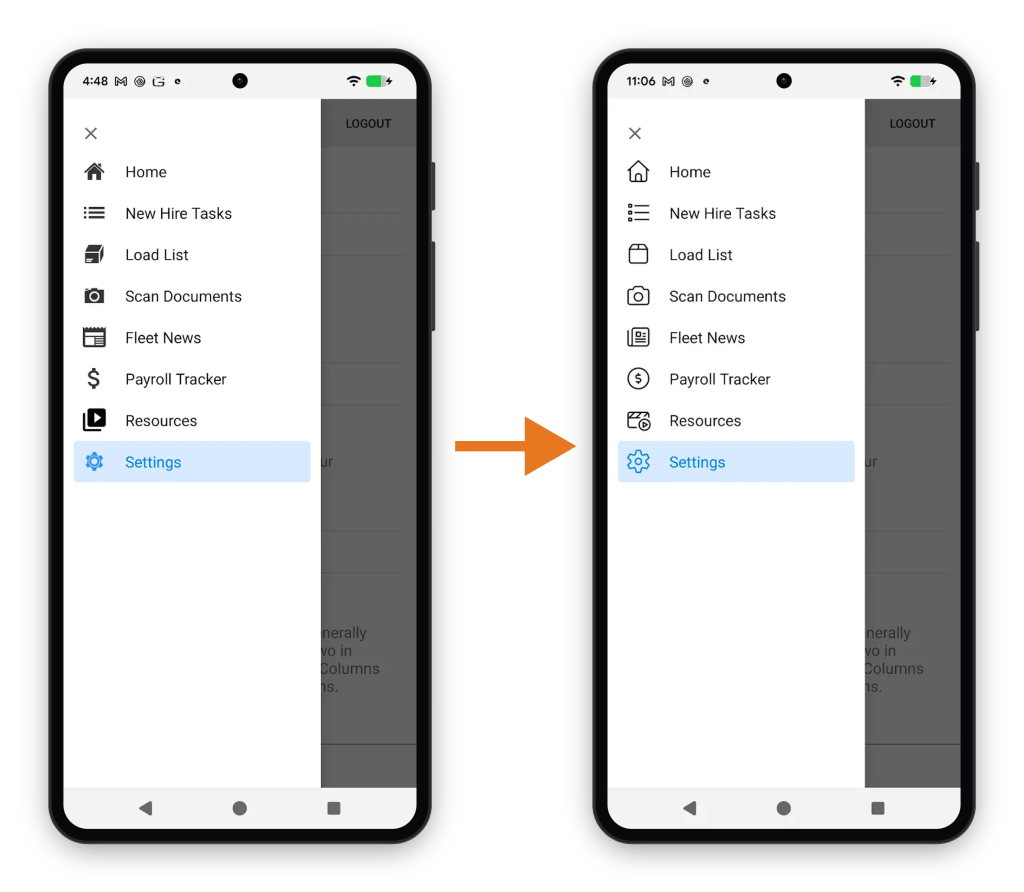
⭐️ Menu UI Refresh: The menus that drivers use to navigate the app have also received a UI refresh. The left-side and bottom bar menus now feature our updated icons, a cleaner layout, and an active state highlight so drivers know where they are at a glance, giving the whole app a more polished, consistent feel that matches the refreshed dashboard. Nothing has moved, so there’s nothing for drivers to relearn.

⭐️ Delivering Action Requests In Motion: You can now deliver Action Requests to drivers while they are in motion, shortening the gap between when a request is created and when the driver can respond. This is especially useful when a message or acknowledgement is considered critical.
Safety comes first, so in-motion Action Requests are built to be readable at a glance and hands-free. Drivers can receive a text-to-speech announcement when a request arrives, and in-motion requests are limited to one-tap actions. Actions that would normally open a form for additional input aren’t allowed, so drivers won’t be delivered a disruptive task while driving. You can also configure how requests look and behave to fit your safety requirements, including concise text and larger buttons. For text-to-speech, you choose whether announcements play automatically and whether drivers can replay them. See our Action Requests guide for best practices when using Action Requests in motion.

⭐️ Multiple Scans Per Form: We’ve updated the functionality within forms to account for scenarios where drivers need to capture more than one document scan, or photo, in distinct fields without leaving the form. Existing FORM-SCAN fields continue to work as they do today, so your current forms and workflows are unaffected. You can now also add more FORM-SCAN fields to any form, whether existing or new. All existing scan functionality carries over to each field individually: drivers can still capture multiple pages within a single scan field and image import from the device’s photo library can still be disabled per your form configuration. Assigned document types and black-and-white vs. color capture settings behave the same as in previous versions.
NOTE: Forms with more than one FORM-SCAN field require app version 1.64 or later. Devices running an older version won’t display these forms at all. This also applies to an existing form if you add a second FORM-SCAN field to it, the form will no longer appear on older devices. To avoid disruption, make sure all drivers have updated to 1.64 before adding fields.

⭐️ Server-Side Form Validation Post-Fill: Your messaging web service response can now write values back into a form, not just report errors. When a form fails server-side validation and you reject the submission with a 422, each field in validation_result can now include a value alongside—or instead of—the error_message. The app overwrites the field with the value returned and presents that back to the driver. You can also clear fields by returning null for the field’s value property.
Before this, if you wanted to add a manual override to your server-side validated forms, you had to make the override visible the moment a driver opened the form. Drivers learn quickly that checking it up front avoids a failed submission, which prevents the form from being validated on the server. With post-fill, the override stays hidden until your criteria are met, so drivers only see it when it actually applies. There are limitless use cases for post-fill and we can’t wait to hear how you use it!
Post-fill works across most form field types, and each field type behaves the same as pre-fill: a value that pre-fills a field will post-fill it the same way*. You can read more about the response format and the value expected for each field type in our new Post-fill Guide.
NOTE: Pre-fill and post-fill behave differently for the LOAD-NUMBER field with show_other set to true.
🔧 Mobile SSO – App-Specific Redirect URIs: We’ve updated our Mobile SSO solution so that each Eleos Platform app has a unique redirect URI. This prevents drivers from seeing an app picker asking which Eleos-powered app they wanted to reopen after authenticating with their identity provider. The redirect URI now takes the form https://fleetmobile.app/[environment]/oauth, replacing the shared https://fleetmobile.app/oauth. This will ensure drivers are redirected to the correct app after completing the SSO flow.
🔧 Update to Sent Documents List: The Sent Documents list for a load now shows documents that match either the load’s order number or its load ID, so drivers can find and audit documents even when a form was filled out using the load ID instead of the order number.
Android
🔧 Cancel Upload Button: If a document upload has been unsuccessful for more than 48 hours, a “Cancel Upload” button now appears on the Sent Documents screen for that specific upload, giving drivers a clear way to stop a stuck upload rather than leaving it and the app retrying indefinitely. Stuck uploads are uncommon, so if you see one, please submit a support ticket so we can look into the cause.
🐞 Fixed a bug where the driver could not zoom or pan around the map on the Route Overview screen when a load or stop had enable_map_interaction_in_navigation set to false. This only occurred after a driver started navigation to a stop and then went back to view the Route Overview screen.
🐞 Fixed a bug where the stop pins would flicker on the map in Trip Planner. This only occurred after a fresh app launch.
iOS
⭐️ Server-Side Form Validation Fallback: Forms can now be validated on the device when server validation is unavailable. If a driver is offline or the validation service cannot be reached, the app will automatically run the form’s validation JavaScript locally. This helps drivers catch errors in real time and avoid having to re-complete forms later. This brings iOS to parity with Android.
🐞 Fixed a bug where an Action Request would be sent to the user but show no action button(s) when button_color and/or button_color_dark were explicitly set to null. This scenario now falls back to our documented default colors.
✅ As usual, this version of the Platform mobile app is designed to be backwards-compatible with your existing web services and doesn’t require server changes prior to being deployed. If a future version introduces a backwards-incompatible change, we’ll note that in this portion of the release notes.
Server and App Manager
The following items are server-side changes and are available without a mobile app update.
⭐️ Action Requests Status API: You can now query a list of Action Requests via our API, making it easier to audit and manage Action Requests. Users can now identify pending or stale Action Requests, or locate a request’s identifier if it wasn’t saved at creation.
For each Action Request, the response includes the identifier, the Action Request data, and the date it was created. Customers can also filter by pending status to review any pending Action Requests that may require attention. Results are paginated with up to 25 Action Requests per page. Explore this new API via the Action Requests API documentation.
⭐️ Expanded Token Authentication Options: Your authentication service can now receive a user’s API token as a bearer header instead of in the URL. This gives you more flexibility if you’ve hit URL length limits with longer tokens, and aligns our API with the more common Authorization: Bearer header pattern used across most APIs. You can manage this from Service Config in App Manager by choosing between “Bearer Token in Authorization Header” or “Token in URL Path” as the Integration Type for your Authentication Service. By default, API tokens continue to be sent in the URL, to ensure backwards compatibility with your existing web services.
⭐️ One Navigation Bar for App Manager and Document Hub: Until now, App Manager and Document Hub each had their own navigation bar, so working across both meant learning two layouts and switching between them. Permissions had a similar problem: their names did not line up with what users saw on screen, and a single permission could unlock unrelated features. Granting someone the ability to manage Media Library and News, for example, also gave them access to message your entire fleet, because all three features sat behind the App Content permission.
On October 13, 2026, we’re releasing a new navigation bar experience. App Manager and Document Hub will share a single navigation bar, so the same headers appear in the same places no matter which side of the system a user is working in. As a part of this work, we have also reorganized permissions so that each permission on the User Administration page maps to a navigation bar item, making it easier to understand what a user gains access to when you grant them a specific permission. The Imaging permission is now Document Hub, matching the header of the same name, and a new Messaging permission gives customers granular control over who can message drivers. The Home tab is retired, and clicking the Eleos logo now opens the Home page and its Eleos Platform Metrics reports.
Permissions migrate automatically and no user loses access:
| Previous Permission | New Permission |
| App Development | App Administration |
| App Configuration | App Components |
| Imaging | Document Hub |
| App Content | App Content, Messaging |
After the release, user administrators can review messaging access and adjust individual users as needed. To do so, click your sign-in email address to open the Account Menu, then select User Administration.
For the full list of headers, permissions, and where each feature moved, see the Navigation Bar & Permissions Update article.
🔧 Automatic Expiration for Pending User Invites: Pending invites in App Manager now automatically expire if they aren’t accepted within 10 days. Previously, invites never expired, leaving unused invitations active indefinitely and creating a potential security risk. There was also no way to reissue an invitation, so resolving a stuck invite required contacting support.
You can also resend invitations now, before or after expiration. Sending a new invitation before expiration restarts the 10-day window. This only affects users with a pending, unaccepted invite; active accounts are not impacted.
🔧 Optimized POI Search: We’ve optimized POI searches to increase the likelihood of successfully returning POIs to drivers in Trip Planner.
🔧 New Icon Library: As part of our Menu and Dashboard UI Refresh, we’ve also introduced a new set of icons to create parity across iOS and Android apps. The new icon set is backwards compatible and will display on app versions prior to 1.64 as well – this icon update will take effect on Wednesday, October 14th. After the 14th, you can preview the updated library of icons on our Available Icons page.
🐞 Fixed a bug where the workflow builder would prevent saving edits without showing the cause of the error preventing the save. Now if you enter a prohibited character in a stop/load status code or the workflow code the save button is disabled and the error is displayed in red text.
🐞 Fixed a bug where App Manager would fail to generate a unique code value for new components. This could occur when a user sets the number at the end of the generated code to a value larger than 9999999999999999.
🐞 Fixed a bug where App Manager users could not login after disabling SAML SSO. Disabling SSO now reverts all users to email/password login.
🐞 Fixed a bug where Eleos could not create a driver’s Geotab account when the securely-generated random password inadvertently contained a letter from the user’s first or last name, which failed to meet Geotab password requirements.
